What’s Covered on This Page
Glass Crack or Full Display Damage: How to Tell the Difference
Here’s something many people don’t know about the iPad 10th gen. Its screen isn’t one fused piece. The front glass, which also handles your touch, sits on top of a separate LCD that makes the picture. A crack doesn’t always mean the whole screen is ruined. It depends on which layer took the hit.
You can learn a lot in about two minutes at your kitchen table. Turn the brightness all the way up. Open a blank note or a plain white web page so the screen shows one solid color. Then look closely past the cracks at the picture itself.
Signs the damage is likely just the glass:
- You can see cracks or a spiderweb, but the picture behind them is sharp and evenly lit.
- Colors look normal, with no dark blotches or lines.
- Touch works everywhere, or it fails only in spots near the cracks.
- The iPad taps or opens apps on its own. This is called ghost touch, and it usually comes from the glass layer, not the display.
Signs the display underneath is damaged:
- Black or purple spots that look like spilled ink, especially if they grow over a day or two.
- Straight lines running across the screen, either colored or white.
- Flickering, dim patches, or one side brighter than the other.
- A screen that stays black or white while the iPad still makes sounds, plays alerts, or vibrates.
Want to test touch more carefully? Press and hold an app icon until the icons start to jiggle. Then slowly drag one icon across every part of the screen, edge to edge and corner to corner. If it drops or jumps in one area, that spot isn’t reading your finger. On this model, that points to the glass layer, even if the picture looks perfect.
Sometimes it’s both. A hard drop onto concrete or tile can crack the glass and damage the display in the same fall. A screen can also look fine at first and then show a spot or line later, after the crack has had time to spread. If you notice new marks showing up, take that as a sign the display is involved.
You don’t have to figure this out perfectly before you come in. Still, it helps to tell us what you’re seeing: where the cracks are, whether touch works, and whether the picture has spots or lines. I look over each device myself and explain the repair options before any work starts. Knowing which layer is damaged tells us which part your iPad needs, so you’re only paying to fix what’s broken.
What Happens During an iPad 10th Gen Screen Assessment
An assessment answers one question before any money is spent: what exactly does your iPad need? The crack is the part you can see. A good assessment also checks the parts you can’t, so the repair fixes the whole problem the first time.
At our shop, I look over each iPad myself. I’m the one who checks it, explains what I find, and walks you through your options and pricing. If anything changes once the repair is underway, you’ll hear it from me.
Beyond confirming which screen layer is damaged, here’s what a careful check on this model should cover:
- The frame. A hard drop can bend the aluminum edge. New glass won’t sit flat on a bent frame, so it has to be checked first.
- The top button. The iPad 10th gen has Touch ID built into the top button, right near the screen edge. It needs to work before and after the repair.
- The battery. A screen that’s lifting or bulging away from the body can mean a swollen battery pushing from behind. That’s a safety issue, and it changes the repair.
- Charging, cameras, and speakers. A fall that cracks the screen can also knock other parts loose. It’s better to find that now than after the new screen is in.
- Power and startup. If the iPad won’t turn on at all, the problem may go deeper than the screen.
That last point matters. Sometimes a screen stays black because the display is gone. Other times the iPad isn’t powering on, and a new screen won’t change that. Telling those apart keeps you from paying for a part that doesn’t solve anything.
If the damage turns out to be deeper, I’ve spent over 13 years repairing electronics, with specialized skills in microsoldering and motherboard repair. A charging problem may point to an iPad charging port repair instead of, or along with, the screen. And if your iPad won’t start and you’re worried about photos or files, we can talk about data recovery options. Recovery depends on the condition of the device, so no shop can promise it.
What you get at the end is a clear picture. You’ll know which part is broken, what the repair involves, and what it costs before anything moves forward. Glass-only damage and full display damage don’t need the same part, so they won’t have the same price. You decide from there.
A few things make the visit smoother on your end:
- Back up your iPad to iCloud or a computer if it still turns on and responds to touch.
- Write down what you’ve noticed, like spots, lines, ghost touches, or when the problem started.
- Bring your charger if you think the charging port might also be acting up.
Our shop is at 4971 N High St in Columbus. There’s no need to diagnose it all yourself first. Bring it in as it is, and you’ll leave knowing exactly what you’re dealing with.
Signs Your Screen Repair Can’t Wait
Some cracked screens can sit for a few weeks. Others are getting worse every day you use them. The difference comes down to safety, your data, and whether you can still get into your iPad at all.
Get it fixed soon if you notice any of these:
- Sharp edges or loose glass. If you can feel rough spots or tiny chips coming off, someone’s going to get cut. That matters even more if a child uses the iPad for school or games. Tape over the crack can help for a day or two, but it isn’t a fix.
- Missing pieces of glass. A gap in the glass lets dust, crumbs, and moisture reach the layers underneath. A glass-only problem can turn into a display problem this way.
- Ghost touch that’s getting worse. When the iPad taps on its own, it can open apps, send messages, or delete things without you touching it. That’s more than annoying when it happens in the middle of a work email or a school assignment.
- Dead spots over the passcode keys. If the area where you type your passcode stops responding, you could get locked out of your own iPad. Back it up now while you still can.
- A screen lifting away from the body. As covered above, that can mean a swollen battery. Stop charging it and bring it in.
Cracks also don’t stay put. Everyday pressure, like holding the iPad, sliding it into a bag, or setting it face down, puts stress on glass that’s already broken. A small crack in one corner can run across the whole screen after a few weeks of normal use. If you’ve already seen new spots or lines appear, the display is involved, and waiting usually means more of the screen becomes hard to use.
Here’s a common case. A parent notices a crack on their kid’s iPad after a drop. It still works, so they wait. A month later, the bottom of the screen won’t respond, and the keyboard sits right in that dead zone. Homework stops until the screen gets fixed. Catching it earlier wouldn’t have changed the part needed. It would’ve saved a few frustrating weeks.
To be fair, not every crack is urgent. If you’ve got a thin hairline crack near the edge, the picture is clean, touch works everywhere, and nothing feels sharp, it’s okay to wait a bit. Put a screen protector or a good case on it to slow the spread, and keep an eye on it. If it starts to grow, ghost touches start, or spots show up, that’s your sign it’s time.
Whatever you decide, back up your iPad now while it still turns on and responds. A screen that’s working today won’t always be working tomorrow, and your photos and files are the one thing a new screen can’t replace.
Thinking about ipad 10th gen screen repair? Let’s talk.
Get Instant Quote Now. JUST PHONE REPAIR & ELECTRONICS is ready to help.
When You Don’t Need Screen Repair
Not every screen problem needs new parts. Some issues look like screen damage but aren’t. In other cases, a screen repair may not be the smartest use of your money. Here’s the honest list.
The crack is in your screen protector, not the iPad. A tempered glass protector can shatter and look exactly like a broken screen. Run a fingernail along the edge. If you feel a thin raised layer, that’s the protector. Peel it off slowly from one corner. If the glass underneath is smooth and the picture is clean, you just need a new protector, not a repair. That protector did its job.
The touch problem might be something simple. Before you blame the glass, rule out a few common causes:
- A dirty or damp screen. Grease, lotion, or a little water can make touch jumpy. Wipe it with a soft, dry cloth and try again.
- A tight case. Some cases press on the edges of the screen and cause random taps. Take the case off and see if the problem stops.
- A frozen app or a software glitch. If the screen froze but the picture looks fine, restart the iPad. Install any updates once it’s running again.
- Wet or gloved hands. Touch screens don’t read well through gloves or wet fingers.
If touch works normally after one of these, your screen is fine.
The display just looks off. A dim, yellow, or washed-out screen isn’t always a bad display. Settings like auto-brightness, Night Shift, True Tone, or zoom can change how the screen looks. If the iPad seems darker or warmer than it used to, check your display settings before you assume the worst. A real display fault shows up as spots, lines, or flicker, as described earlier. A setting doesn’t cause those.
The damage is only cosmetic. A scuff on the aluminum frame or a light scratch on the glass that you only see at an angle doesn’t affect how the iPad works. There’s no reason to replace a screen for that.
The iPad has bigger problems. If your iPad also has a weak battery, a bent frame, and a charging issue, think about the total cost before fixing the screen alone. Sometimes several repairs together add up to more than the iPad is worth to you. That’s a fair question to ask any shop, and you should get a straight answer.
You’re about to replace it anyway. If you were already planning to upgrade soon, and the crack isn’t sharp or spreading, it may make sense to back it up, put it in a case, and wait. A cracked iPad you’re about to retire doesn’t always need fixing first.
I’d rather tell you a repair isn’t needed than sell you one you don’t need. If the fix turns out to be a new protector or a settings change, that’s a good day for you.
Why DIY Glass Kits Are Riskier on This Model
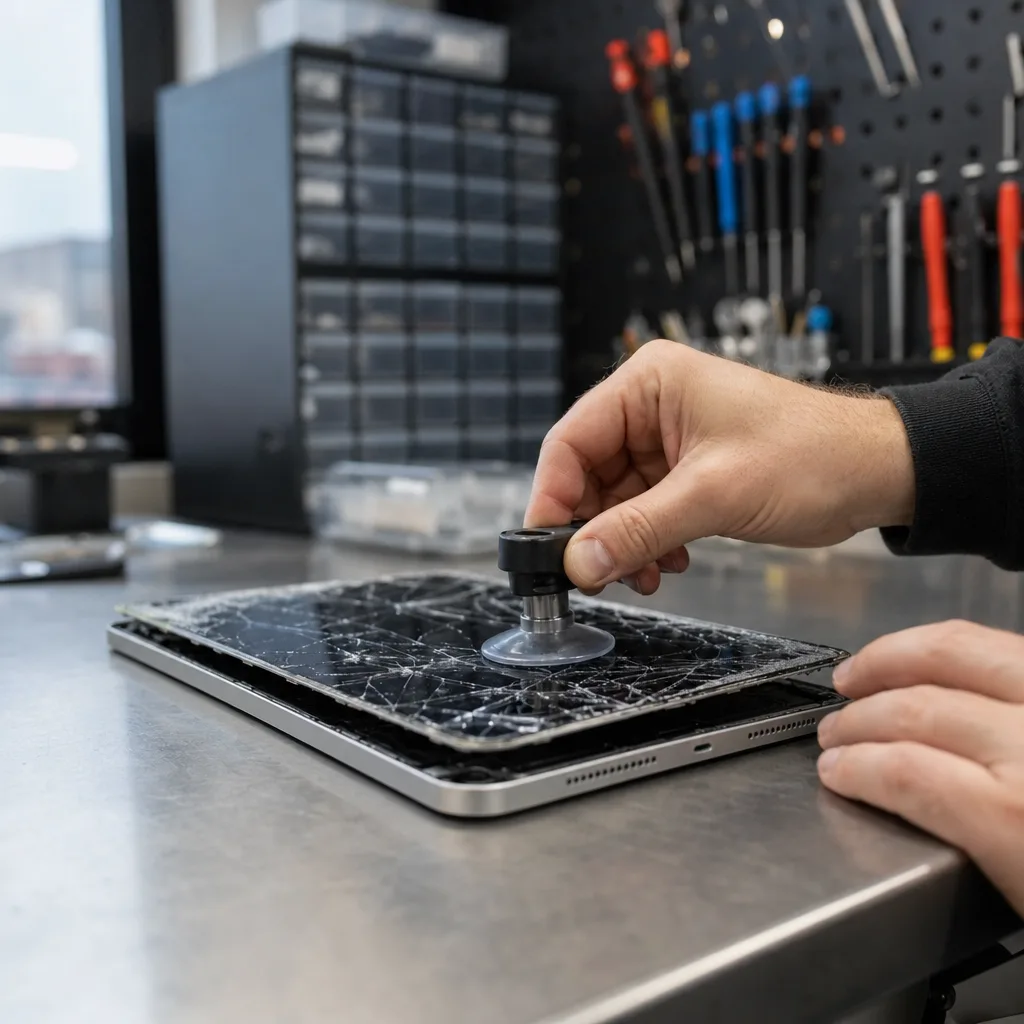
Online kits make glass replacement look like a 20-minute job. On the iPad 10th gen, it’s harder than it looks. Since the glass and the display are separate layers, swapping only the glass sounds simple. The catch is getting the old glass off without breaking the good display sitting right under it.
Here’s where home repairs on this model usually go wrong:
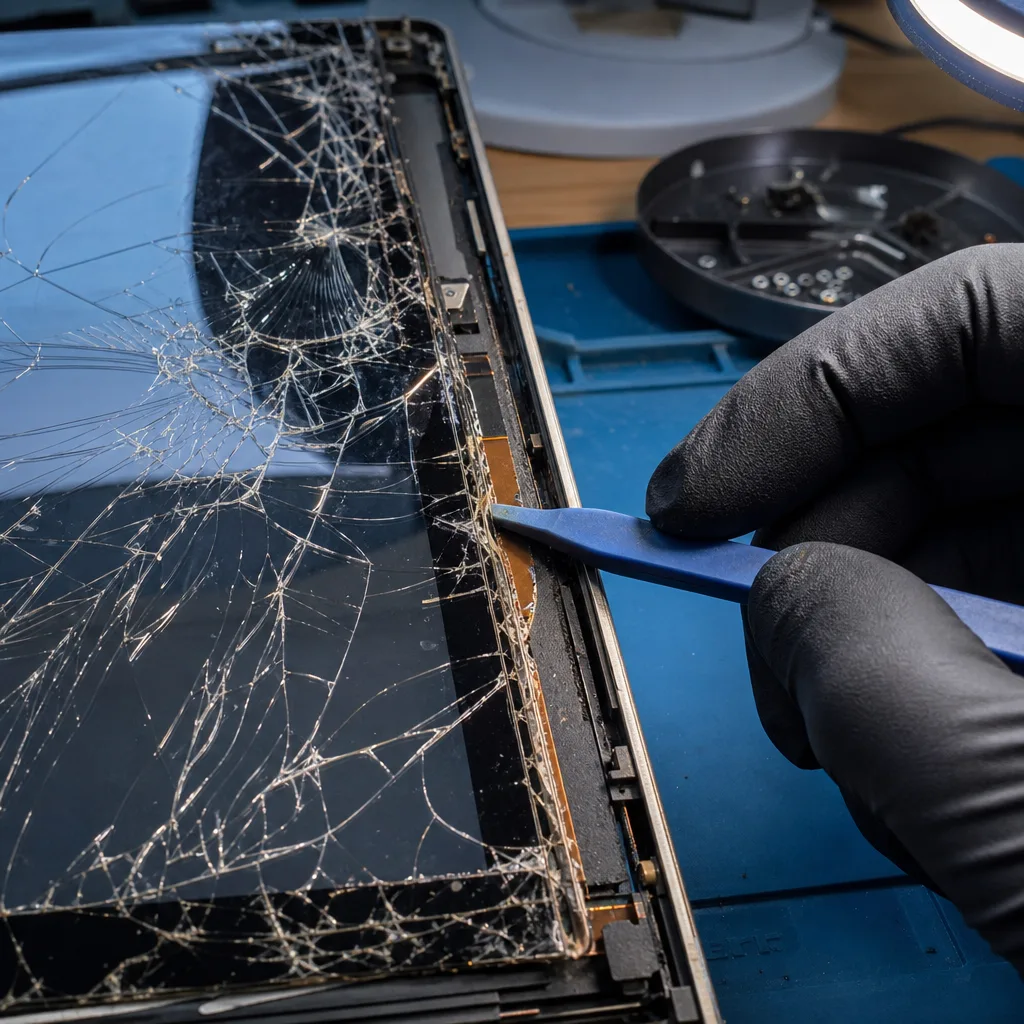
- Cracked glass doesn’t come off in one piece. It’s held on with strong adhesive, so it has to be heated and pried away a bit at a time. Broken glass splinters as you work, and small shards end up on your hands, your table, and inside the iPad.
- The display underneath is thin and easy to crack. One slip with a pry tool or a little too much pressure can break a display that was working fine. Now you need two parts instead of one.
- Thin cables run close to the edges. The glass and the display each connect with a thin, flat cable. If you pry in the wrong spot or lift the glass too far too fast, you can tear one. A torn cable can mean no touch, no picture, or both.
- The battery sits close behind the screen. Pushing a tool in too deep near the battery is a real safety risk. A damaged battery can swell, smoke, or catch fire.
- Kit parts vary a lot. Some glass doesn’t fit the frame well, and weak adhesive can let the new glass lift at the edges. Glass that doesn’t sit flat can cause touch problems or let dust and moisture in.
Then there’s the cost. A kit can look cheap next to a shop repair. But if the display cracks or a cable tears during the job, you’re now buying a new display and maybe paying a shop anyway. A small glass-only problem can turn into a full screen replacement because of one slip.
To be fair, some people do this repair well at home. If you’ve done tablet repairs before, have the right heat and pry tools, and can live with the risk of breaking the display, it’s your call. Just go in knowing what’s at stake. If the iPad is new to you, belongs to your kid, or holds photos and files you can’t lose, it’s not the place to learn.
I’ve spent over 13 years repairing phones, tablets, computers, and game consoles, with specialized skills in microsoldering and motherboard repair. That background matters when a repair runs into a torn cable or deeper damage that a kit can’t fix. Our family-run shop was recognized as Wireless Store of the Year – Columbus in 2026, and our customers’ reviews point to honest pricing, clear communication, and quality workmanship.
If you’ve already tried a kit and something went wrong, don’t panic. Stop working on it, keep any loose parts, and bring the iPad in as it is. Tell me what you did, and I’ll check what can still be saved.